A Step-by-Step Guide to Deploying Your First Virtual Machine in Azure
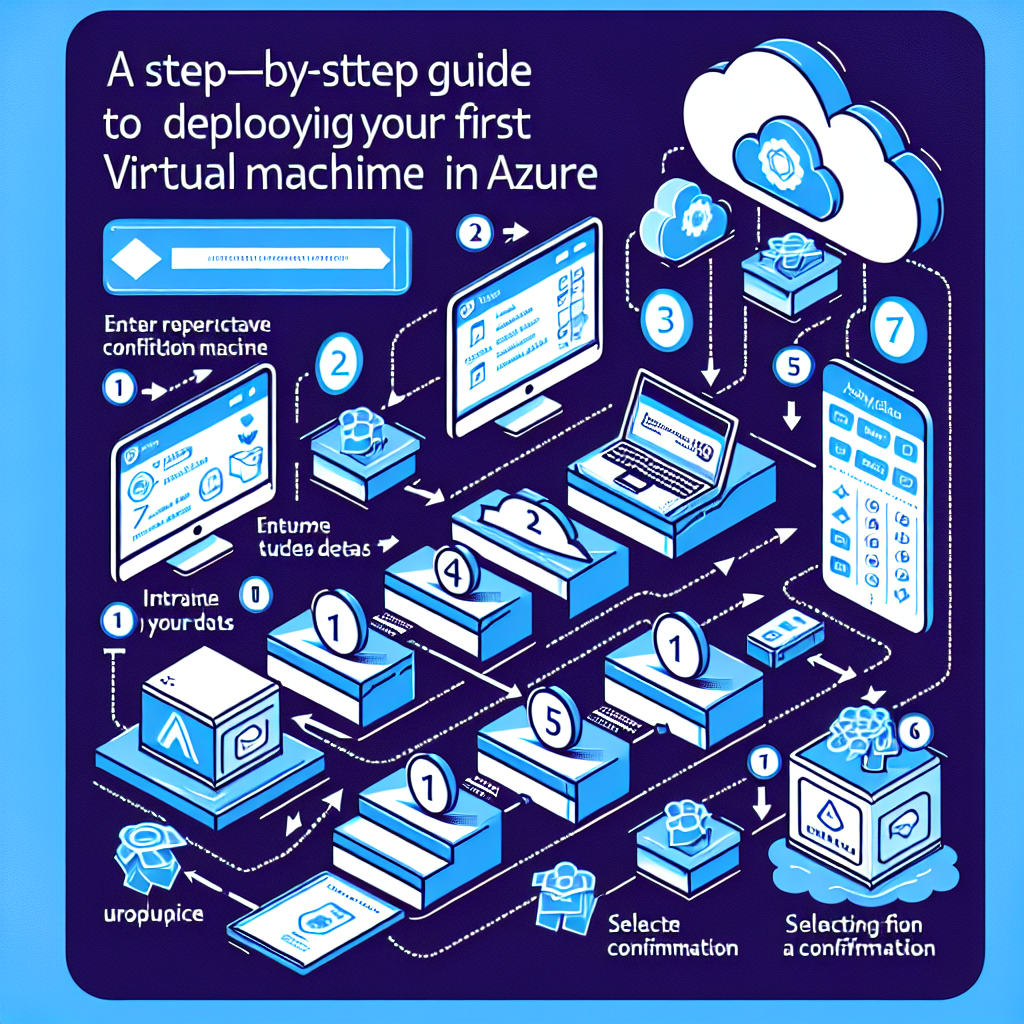
A Step-by-Step Guide to Deploying Your First Virtual Machine in Azure
Deploying a virtual machine (VM) in Microsoft Azure can seem daunting at first, particularly if you’re new to cloud computing. However, this step-by-step guide will walk you through the process, ensuring you have a clear understanding of how to set up your very first virtual machine.
Step 1: Create an Azure Account
Before you can begin deploying a virtual machine, you need an Azure account. If you don’t have one, you can sign up for a free account which often includes credits for the first month.
- Go to the Azure website.
- Click on “Start free” and follow the prompts to create your account.
- Once your account is set up, sign in to the Azure portal.
Step 2: Navigate to the Azure Portal
After logging in, you’ll be directed to the Azure Portal. The portal is your central hub for managing Azure services.
- Familiarise yourself with the dashboard layout.
- Use the search bar at the top of the screen to quickly access services.
Step 3: Create a Virtual Machine
- Select ‘Virtual Machines’: On the left-hand menu, click on “Create a resource”, and then select “Virtual Machine” from the options provided.
- Basic Configuration:
- Subscription: Ensure you select the appropriate subscription.
- Resource Group: You can create a new resource group or use an existing one for better management.
- Virtual Machine Name: Choose a name that reflects the purpose or application of your VM.
- Region: Select the geographical location for your VM. Consider proximity to users for better performance.
- Availability Options: Select availability based on your requirements (availability zone, set, or no infrastructure redundancy).
- Image: Choose an operating system for your virtual machine. Options include Windows Server and various Linux distributions.
- Size: Click on “Change size” to pick a size that suits your performance needs and budget. Azure provides various specifications depending on the workload.
Step 4: Configure Administrator Account
- Authentication Type: Choose between password or SSH public key for authentication. For Windows machines, a username and password is typically used, while Linux machines may require an SSH key.
- Username: Choose an administrator username.
- Password/SSH Key: Set a strong password or provide your SSH public key.
Step 5: Configure Networking
- Network Interface: Azure creates a new network interface for your VM automatically. You can configure this later if needed.
- Virtual Network: It will provide a default virtual network. Make adjustments based on your networking needs.
- Public IP: Decide whether you want to assign a public IP address to your VM. This is essential for remote access.
- Network Security Group (NSG): NSGs help secure your VM by allowing or denying network traffic. Use the default rules or create custom ones as per your requirements.
Step 6: Configure Management Options
- Monitoring: Decide whether to enable monitoring features such as boot diagnostics, guest OS diagnostics, and Azure Security Centre.
- Automatic Shutdown: You can set a time for the VM to shut down automatically to save costs when not in use.
Step 7: Review & Create
- Review Settings: Azure will provide a summary of your configuration settings. Review these to ensure everything is correct.
- Create: Click the “Create” button. Azure will begin deploying your virtual machine. The deployment process may take several minutes.
Step 8: Access Your Virtual Machine
Once the deployment is complete, you will receive a notification.
- Navigate back to the Virtual Machines section in your Azure portal.
- Click on your newly created VM.
- To access a Windows VM, use Remote Desktop Protocol (RDP) by clicking on the “Connect” button and following the instructions. For a Linux VM, use SSH from a terminal or an SSH client.
Conclusion
Congratulations! You have successfully deployed your first virtual machine in Azure. With your VM up and running, you can now explore various applications and services. Remember to monitor usage and costs, as these can accumulate quickly if your VM is running continuously.
As with any new technology, continuous learning is key, and Azure provides extensive documentation and tutorials to help you further enhance your cloud skills. Happy cloud computing!
Share this content:




Post Comment